
PLEASE NOTE: We are continually making updates and changes to the site so these instructions may not match exactly. Also depending on your Permission Level you may or may not see some of these data fields. If you don’t see something that you need to change, please email us at Support@WineMarketVentures.com with your requests.
Login
Navigate your browser to www.VaWineMarket.com
Login with the Username and Password provided.

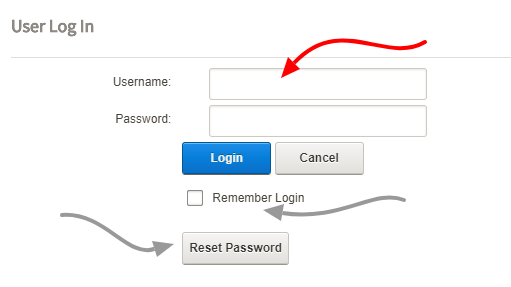
Enter your Username (not case sensitive) and Password (case sensitive)
Check the “Remember Login” box.
If you ever forget your password use the Reset Password button.
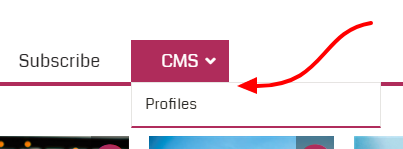
Navigate in the main top menu to CMS | Profiles (this page is only visible to logged in users with the correct permission level.)
Scroll down to the profile manager section.
Select Article Manager from the heading menu.

Only your profile article should appear in this dialog box.
In the Action menu, select the Pencil Icon to edit your profile.
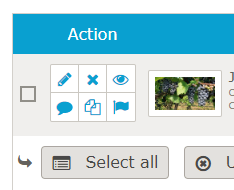
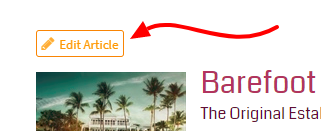
Also when your profile article appears in a list of articles other places on the site you may be able to edit the article directly by clicking the Edit Article button that appears above the title as shown..
Enter your changes in the data fields and be sure to click Update button at the bottom to commit your changes. The data fields are described as follows.
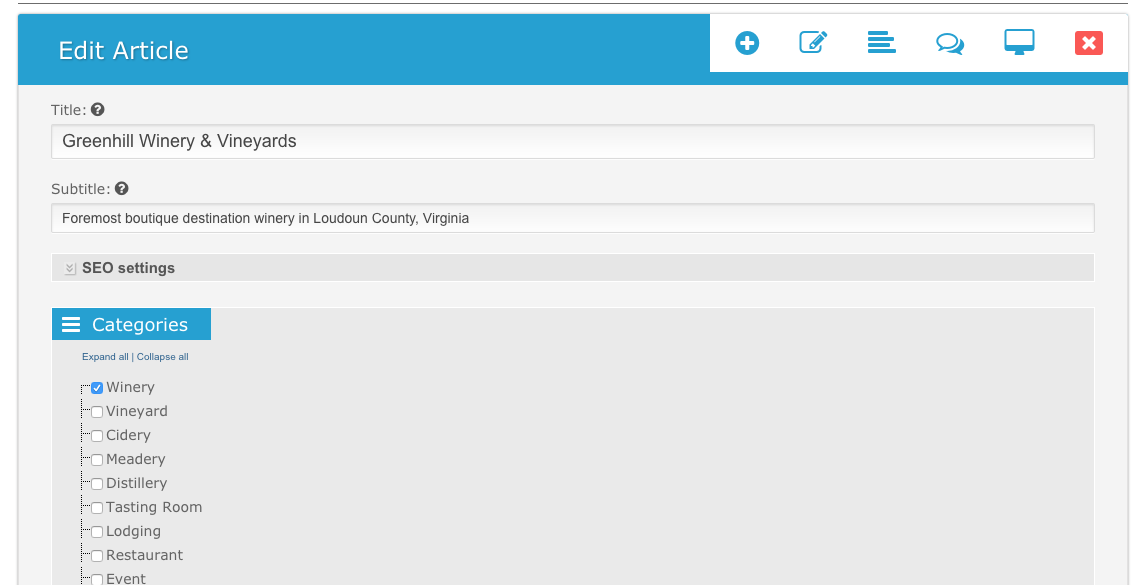
Title: Enter your winery name as you’d like it to appear
Subtitle: Enter a “tag line” description or 1 sentence summary. This appears above your profile pic in some page displays.
Categories: Select Winery, Cider, Meadery. Generally select only one, but if your business has two you can select two types. Note: Vineyard is designated only for businesses that are ONLY a vineyard (no winery).
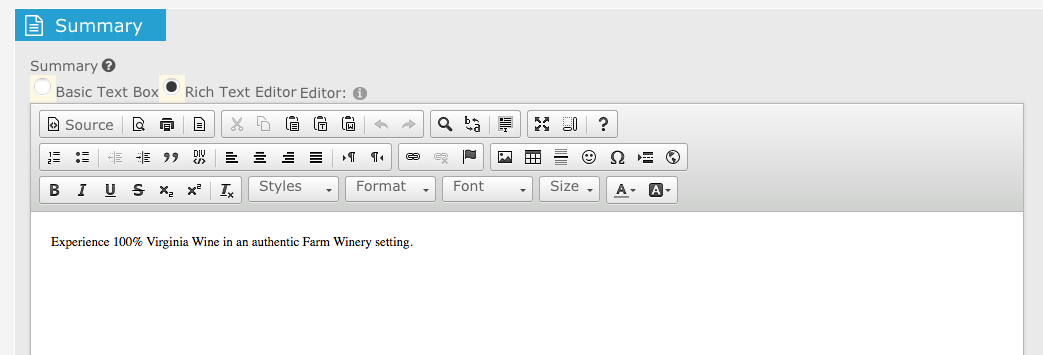
Summary: Add an approximately 250 word summary. This summary appears on pages underneath your profile picture.
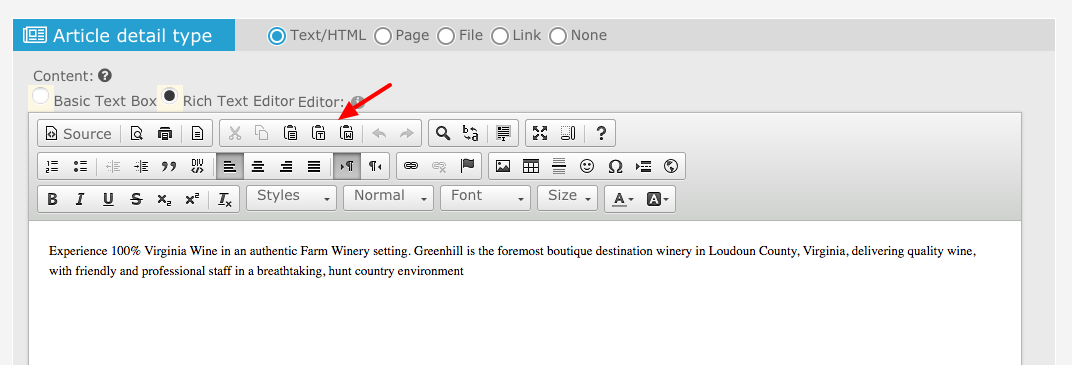
Details: Add a more details description in this section. Use no more than about 500 words.
If you are pasting from WORD or some other program use the “Paste as Text” (CTRL+SHIFT+V) or “Paste from Word” buttons. DO NOT add any Styles or Fonts. Just use plain text. We’ll do any formatting for you if needed.
Tags: Add tags, the first tag should always be the name of your winery (same as Title). Then use the “add existing” tags drop down menu to add others that are relevant. It’s up to you. We’ll monitor this also and add some we think are best. Tags help the system relate other wineries or articles in the Related Articles section below your profile and help visitors search for your winery.

Image Gallery:
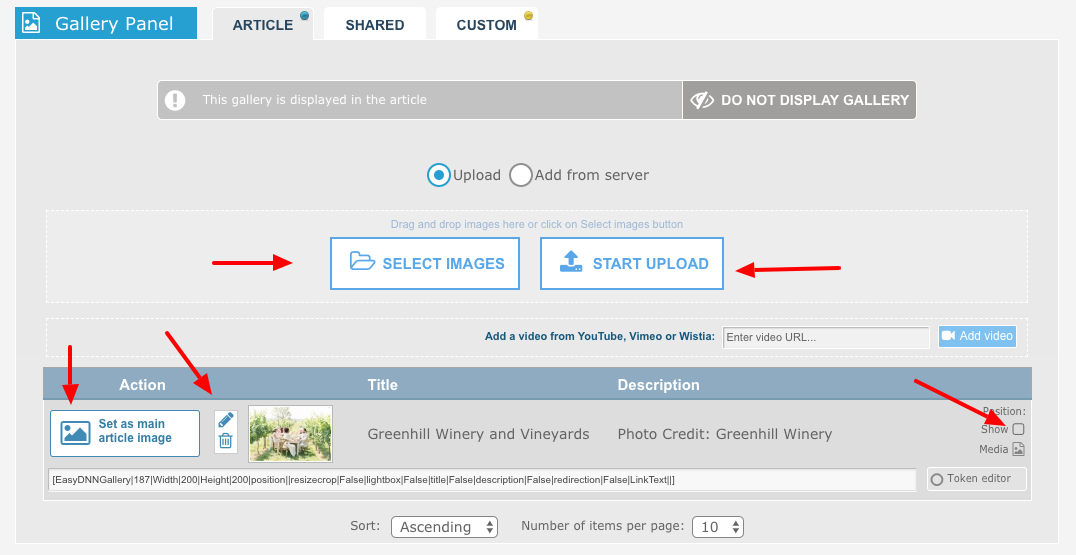
Select Images - browse to pictures folder on your computer, or drag and drop them into the Select Images area. Images will appear as ready to upload.
Click Start Upload - Important.
Click the Pencil to add Title and Description. These are important to help with SEO.
Click the Show box to show or not show the pics in the Gallery that appears below your profile article.
Click the Set As Main to select which picture to use as your main profile image. You can change this up later.
Helpful notes about photos: Main images for your profile should be at least 800 pixels wide. The system will scale down anything larger so it fits nicely.
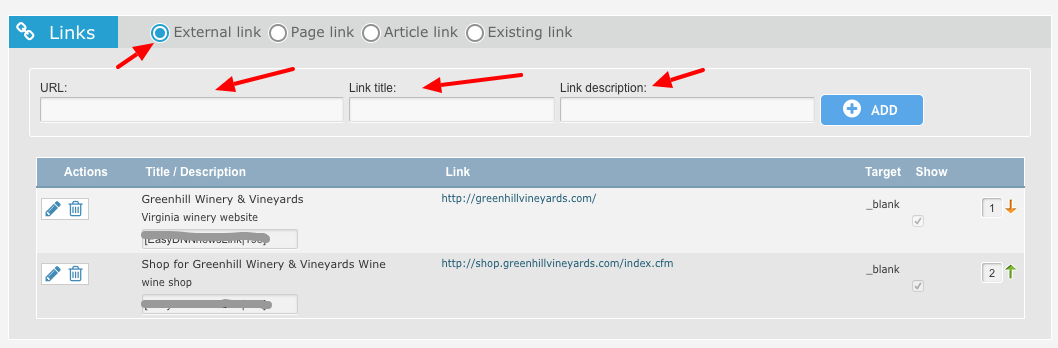
Links: You can add links to your website, Facebook page, Instragram or Twitter account or any other site.
URL: Enter the full address including any http://
Link Title - this will be the text of the link created
Link Description - additional text that appears after the link (eg. Facebook Page, Website)
Main Article Map:
Click the Edit Map button.
Support@WineMarketVentures.com

Field Groups: This is the section to add a bunch of important data about your winery!
Field Group: Winery should be selected by default, if not select Winery.
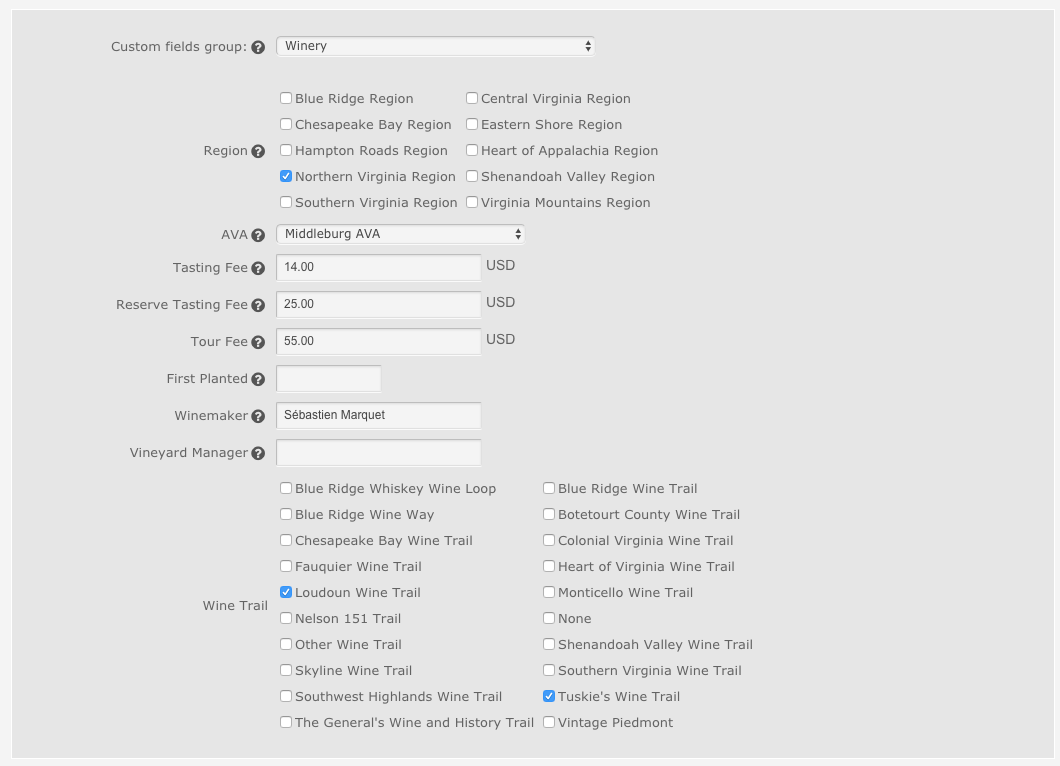
Region: Select only one that best fits.
AVA: Select the one viticultural area if your winery is in a designated AVA.
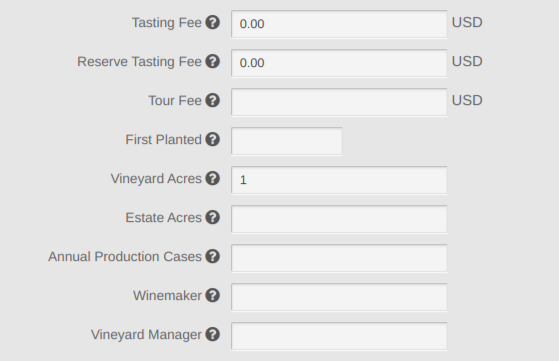
Tasting Fee: Enter in US Dollars
Reserve Tasting: Enter a value if you have one. If no value is entered then the field does not appear on your profile.
Tour Fee: Enter a value if you have one. If no value is entered then the field does not appear on your profile.
First Planted: Enter the Month and Year first vines planted use format 99/99/1999
Vineyard Acres: Total number of acres planted under vine.
Estate Acres: Total acres of the winery estate property.
Annual Production Cases: Approximate total number of CASES produced.
Winemaker: Enter the name of the person that makes the wine or your consultant, or both, whichever you prefer.
Vineyard Manager: Enter the name of the person that tends your vines or your consultant, or both, whichever you prefer.
Wine Trail: Select as many as appropriate. Let us know if yours is missing.
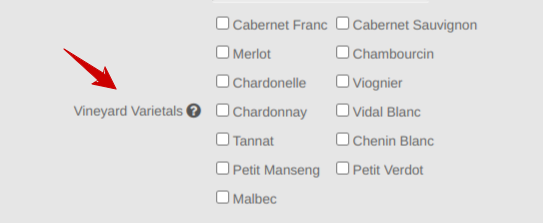
Vineyard Varietals: Click the checkboxes for all the varietals you grow in the vineyard
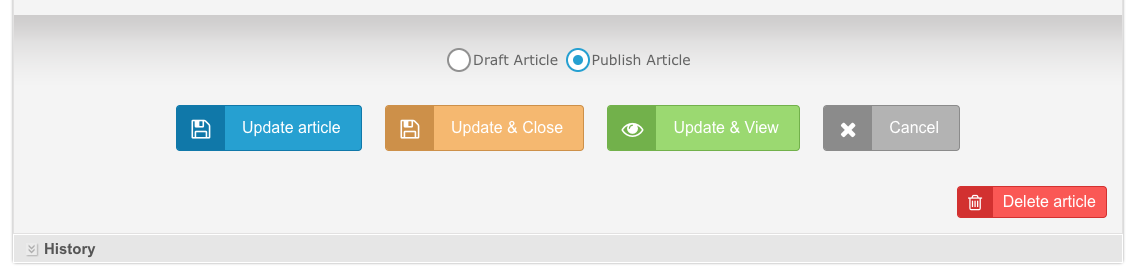
Publish, Draft, Delete
Important: Commit your changes by clicking Update and Close or Update and View.
You can save your changes along the way by clicking Update Article
Selecting Draft Article will unpublish your profile and it will not be visible to the public.
Caution. Selecting Delete Article will permanently delete it from the CMS.
History - see prior versions and revert back to a previous one if needed. Use this if something goes horribly wrong and you just need to start over from a prior revision.