
Adding pictures to your profile is important for your profile and for search engine optimization.
Login to the site and navigate to the CMS | Profiles page
Select your profile article and click Edit Article button
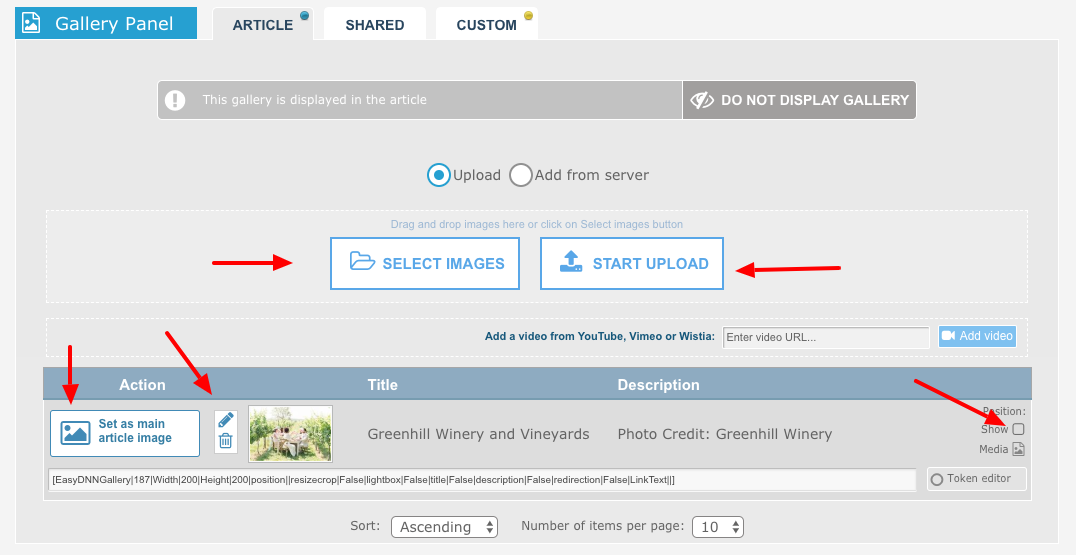
Scroll down to the Gallery Panel
Gallery Panel:
Select Images - browse to the pictures on your computer. You can also drag and drop pictures from your file folders. Drop them on the Select Images button.
Images will appear as ready to upload.
Click Start Upload - Important! The images will appear in a list below.
Click the Pencil to add Title and Description. These are important to help with SEO. Search engines love images that include a title and description metadata.
Click the Show box to show or not show the pics in the Gallery that appears below your profile article.
Click the Set As Main to select which picture to use as your main profile image. You can change this up later to keep your profile fresh.
Helpful notes about photos: Main images for your profile should be at least 800 pixels wide. The system will scale down anything larger so it fits nicely.