How to Add a Winery Event (beta)
Login to: www.VaWineMarket.com 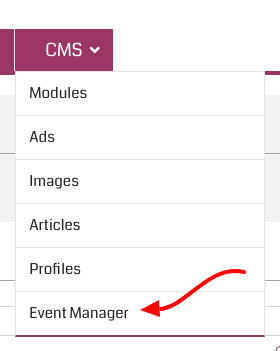
Using your credentials
Navigate to CMS | Events Manager page
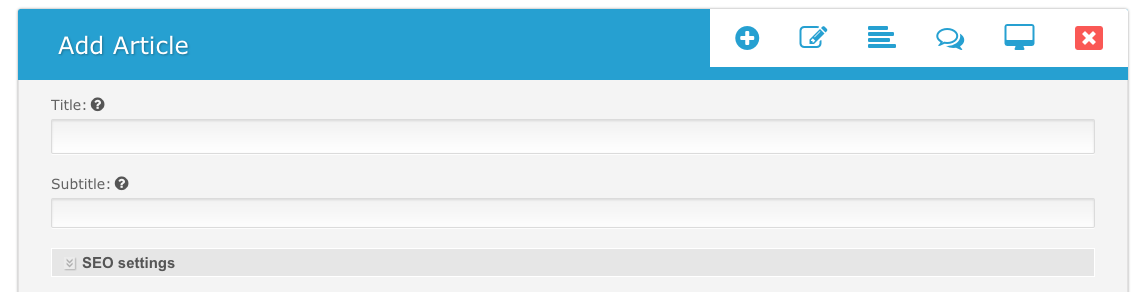
Click Add Article.

Add Event Information
Title - use event title
Subtitle - use winery name or place of Event
Category - check Event (should be checked by default)
Summary- enter a short description of the details. This Summary appears in the below the title in the list of Events on the site. You can make this a short catchy headline or it can be the same as the Full Details entered below.
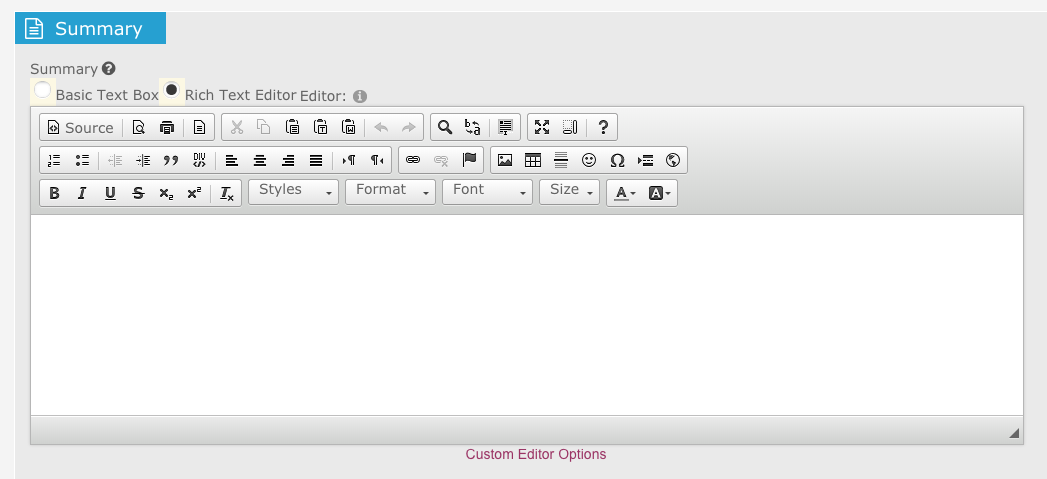
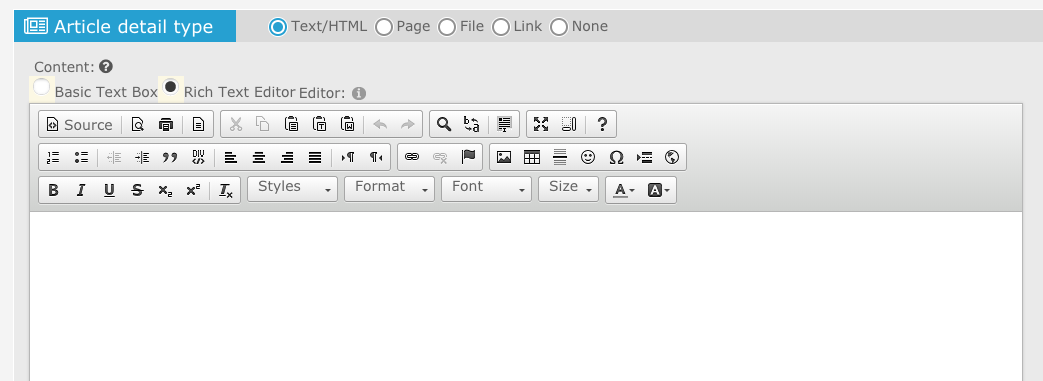
Details - enter description of event
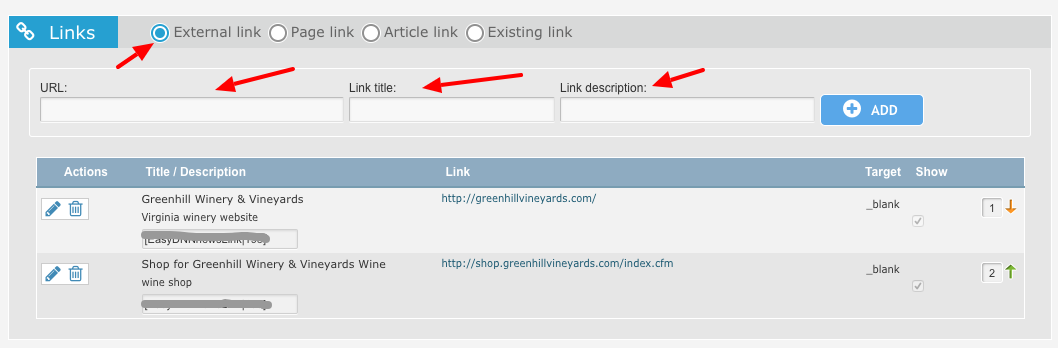
Links - add link to event page
You can add a link to a Facebook Event page or tickets page with the External Link radio button.
The URL should be the full address including the http://
The Link Title will be the text of the link when it appears on the site.
Link Description will appear as additional text after the Link Title.
Tags
Add: Festival, and name of winery or place where Event is occuring. You can also add other descriptive words.
Use the “Add Existing Tags” to add Tags of Wineries participating in the event.

Gallery
You must include at least one picture for the event listing but you can add multiple pictures if you’d like.
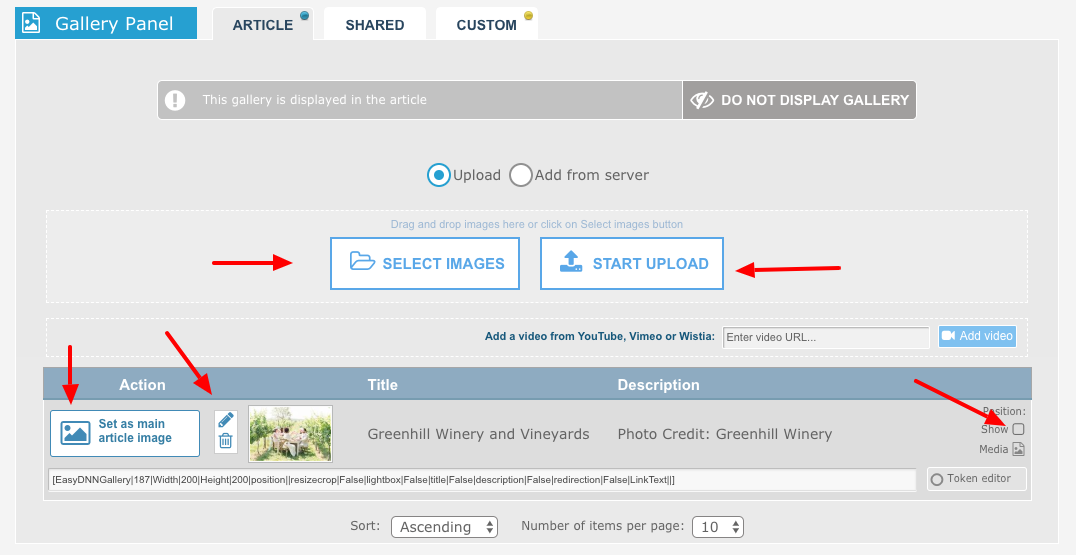
Add pic - The best size is at least 800 pixels wide. You can add a Maximum of 2.
Select Image (pic from your computer).
TIP: You can drag and drop pictures from an open window on your desktop also. Click the cancel button on a pic to delete it before upload if you decide it’s not right.
Click Start Upload
Click Set as Main Article Image to select the image you want to appear as the main image for the Event. Other images will appear in the gallery.
Click the “Show” checkbox to show or uncheck to Hide the pic in the gallery.
Enter Title (name of Event). Entering a Title for the pic is important to improve SEO rankings. It helps google identify and index the picture.
Enter Description (Photo Credit: name of event) This will appear as an overlay footer at the bottom of your picture. This also improves SEO results.
Event Location and Map
In order show the Event Location in your posts on the site and in the event emails you need to add the Location Marker on the Map.

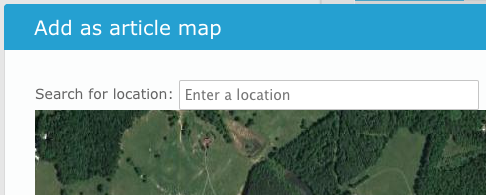
Select ADD or EDIT MAP
Use search box to find location. Search by name or address. Name usually works.
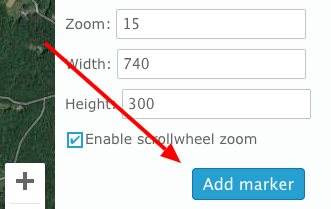
Set width to 740 and Height to 300 (default)
Set the Zoom to 15, 16, or 17 depending on visibility.
Set the type to Hybrid
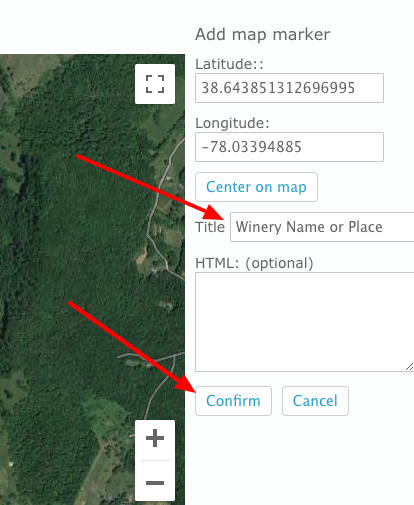
Select ADD MARKER button
You can click and drag the Market to position it best for your location.
Enter the Title for the Marker. This is the text that will appear in the LOCATION field on your event listing.
IMPORTANT: Click the CONFIRM button to save the Marker position and name.
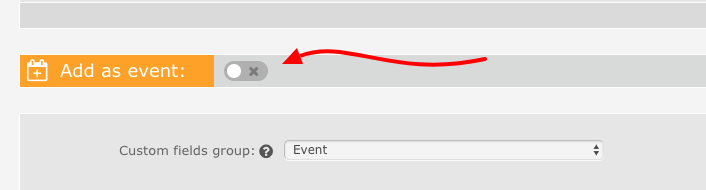
Add as Event (NOTE: this may be automatically selected for you)
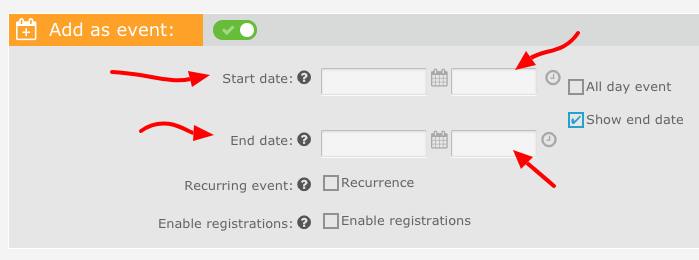
Enter Start Day and Time and End Day and Time
Click “All Day” if times are not shown.
Select Event from Custom Field Groups. (NOTE: this may automatically selected for you)
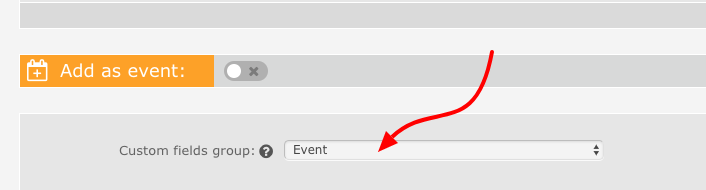
Select Event in Custom fields group the Add Event data fields.
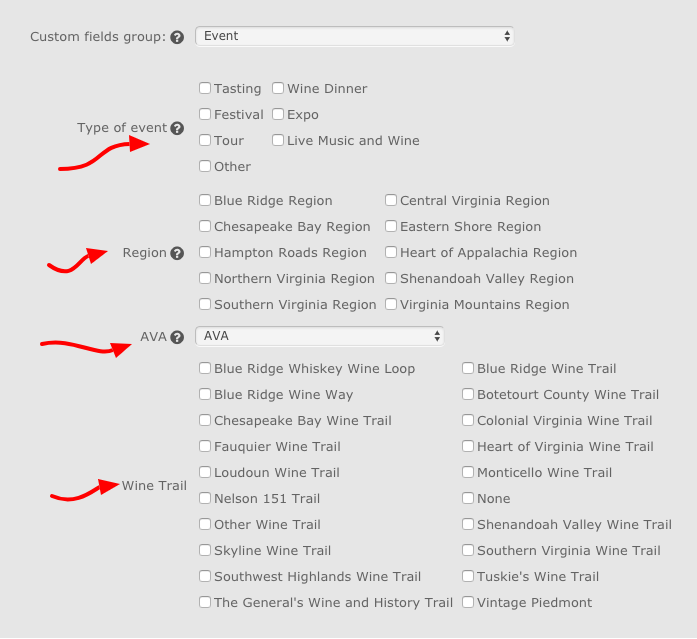
Type of Event - Select the appropriate type, use only 1 or 2 max.
Region. - Select the region in which the event is occuring. Select only 1.
AVA - if the event occurs in a designated AVA select it from the dropdown.
Wine Trail - If the event is part of a designated Wine Trail select it. Select only 1.
..
Publish Expire Date and Time
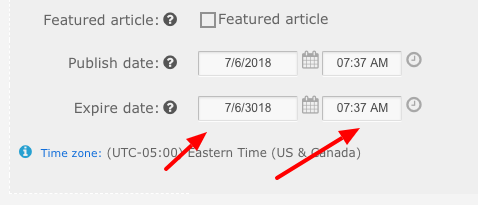
Published and Expired Dates.
Enter the Publishing date. - This can be in the future if you are not ready to publish. Otherwise use the default times (current date and time).
Expired Date. Leave this in the future default. Entering an Expired Date will unpublish the event after that date and it won’t be found on the site after that date. Generally you want to leave an event published for SEO reasons.
..
Publish or Draft Settings.
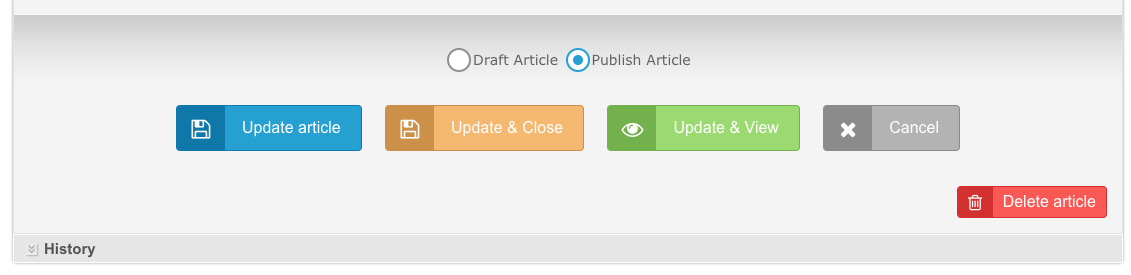
Draft Article will keep the article in draft mode (not published) You can return to it later to finish.
Publish Article will publish it live.
Update Article will save any changes and keep the dialog box open.
Update and Close will save and close the dialog box.
Update and View will save and open the article just edited
Cancel will discard any changes without saving and close the dialog box.
Delete article will delete the article. (Can’t be recovered)