How to Create Recurring Events
If you have a normally recurring event, like a monthly First Friday tasting you can quickly create every event for the year in one post, even if they differ slightly in theme. Here's how to create whole years' worth of events at one time.
Login to VaWineMarket.com with your username and password. Follow these login instructions if you need help with login.
Start by adding an event as you normally would add one. You can follow these instructions on adding Events.
Navigate to the CMS | Event Manager page in the main menu navigation.
Click the Add Article link at the top section Menu.
Pro Tip: If you created an event already and now want it to be recurring first duplicate the event to create a copy then edit it to make it recurring using the same next steps below.
Add in the Title first then follow through adding other information including Subtitle, Summary, Main Body details, Tags, Links, Map, Gallery Images, Type of Event, AVA, Wine Trail.
At this point you need to save the Event before you can generate all the recurrence instances.
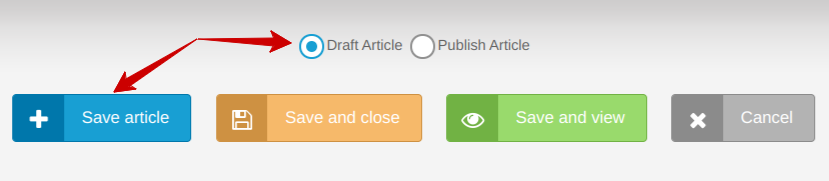
Scroll to the bottom click the radio button for Draft Article and Click Save Article
Select the Recurring Event check box, (wait for it, the page will reload) Recurring Event timing options will load.
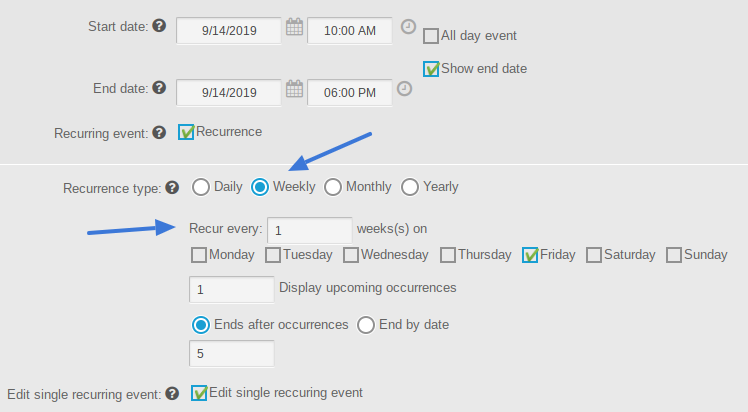
Recurrence Type - You can select Daily, Weekly, Monthly, or Yearly.
Select your preference, Weekly or Monthly, then select Recur every 1 week, then the day of the week (M-Sun)
For Monthly select Recur every 1 months then the day of the month. Here's what it would look like for every First Friday of the month.
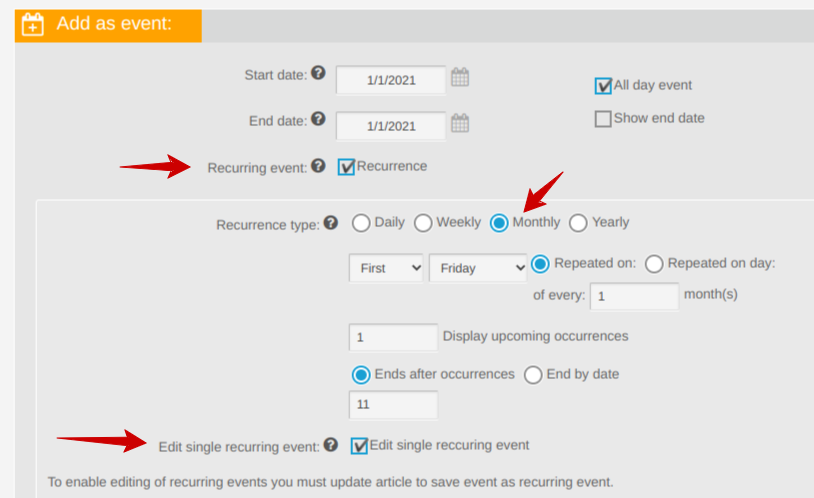
End Recurrence - select the number of occurrences or select the End By Date
Edit single recurring event - If the event recurs but you want to edit each one individually because something is different each time (different theme, different music, different food, etc)
You can select the Edit Single Recurring Event checkbox. You will need to scroll to the bottom and select Save Article again to generate the individual events that you can then edit. Wait for the page to reload.

After clicking Save Article the Events are generated and listed below.
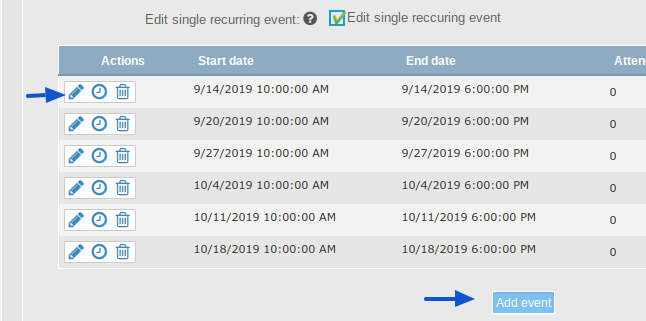
Select the Pencil icon to edit each individual event as needed. You can do that anytime, now or in the future.
After clicking the Pencil Icon to edit the individual event the page will reload and a new entry box for the event Summary and event Details will be displayed. Initially, these will be blank, but you can copy the info from the original event by clicking the
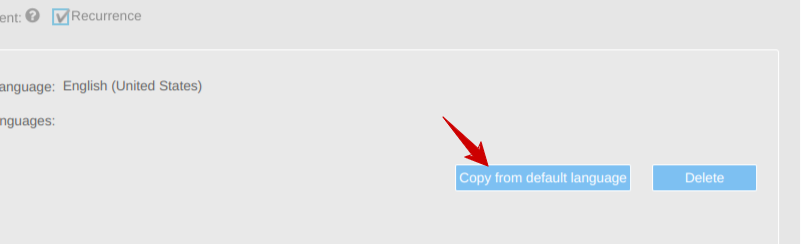
After copying from the default you can edit the Summary and Details to make it unique to the occurence.
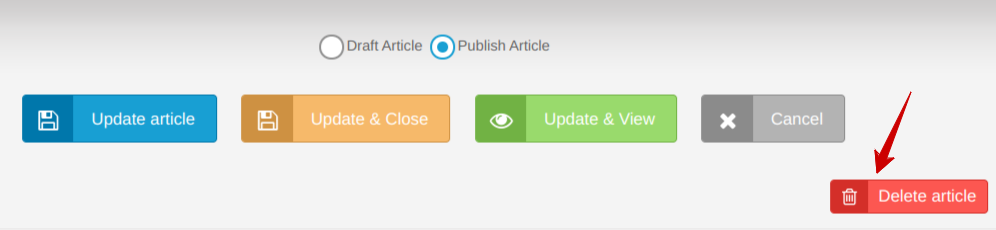
Click Publish Article and Update and View
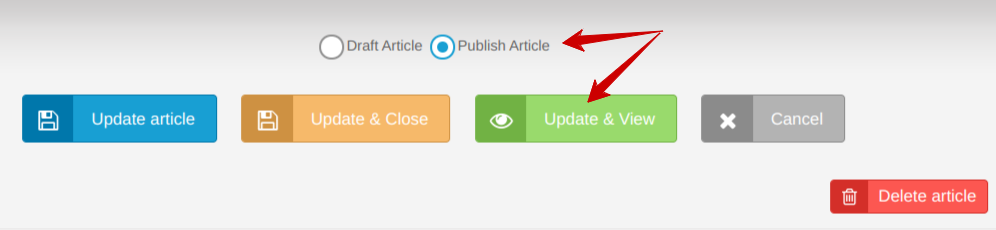
Update and View will save, close, and load the Event for you to see.
Update and Close will save, close, and return you to the Event Manager page
If you need to Delete the article click the Delete Article button. This is not reversible. As an alternative, you can click Draft and Update and Save and the article will be unpublished.